Manage Enterprise Portal Customer Access
This topic describes how to manage customer access to the Enterprise Portal from the Replicated Vendor Portal. It includes information about enabling the Enterprise Portal, managing user invitations, enabling SAML authentication for Enterprise Portal logins, and more.
For information about how your end customers can manage, invite, and remove team members in their Enterprise Portal, see Log In To and Use the Enterprise Portal.
Manage Access to the Enterprise Portal
You can enable the Enterprise Portal globally for all customers, or on a per-customer basis. When the Enterprise Portal is disabled for a customer, they have access to the Replicated Download Portal instead.
The Enterprise Portal supports Embedded Cluster and Helm CLI installation methods only. Customers that use KOTS in an existing cluster or kURL can continue to use the Download Portal.
Enable the Enterprise Portal Globally
To enable the Enterprise Portal globally for all customers:
-
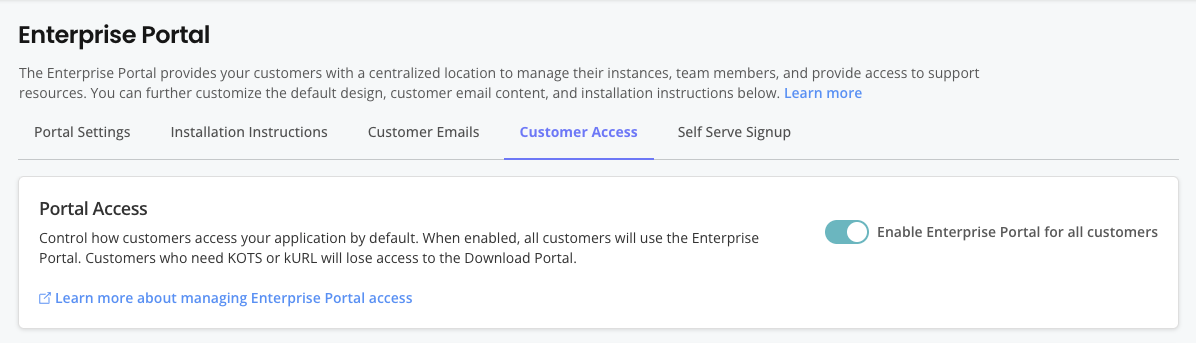
Go to Enterprise Portal > Customer Access. In the Portal Access section, enable the Enable Enterprise Portal for all customers toggle.
Enable the Enterprise Portal Per Customer
To enable the Enterprise Portal on a per-customer basis:
-
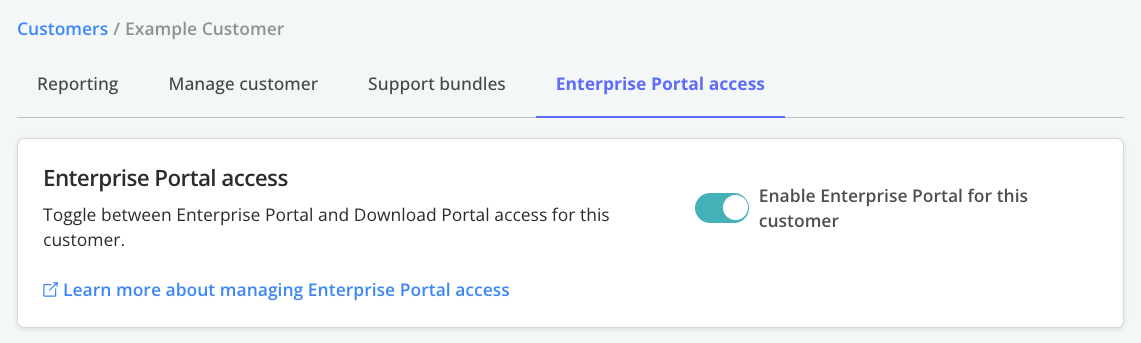
Go to Customers and select the target customer. On the customer's page, go to Enterprise Portal access and enable the Enable Enterprise Portal for this customer toggle.
 View a larger version of this imagenote
When the global Enable Enterprise Portal for all customers setting is on, the per-customer toggle is disabled. To manage Enterprise Portal access on a per-customer basis, disable the global setting. See Enable the Enterprise Portal Globally.
Configure Allowed Domains for User Invitations
You can restrict user invitations for a customer's Enterprise Portal to specific email domains. When you add allowed domains for a customer, only users with allowed email domains can be invited to the Enterprise Portal.
To configure allowed domains for a customer's Enterprise Portal invitations:
-
In the Vendor Portal, go to Customers and select the target customer.
-
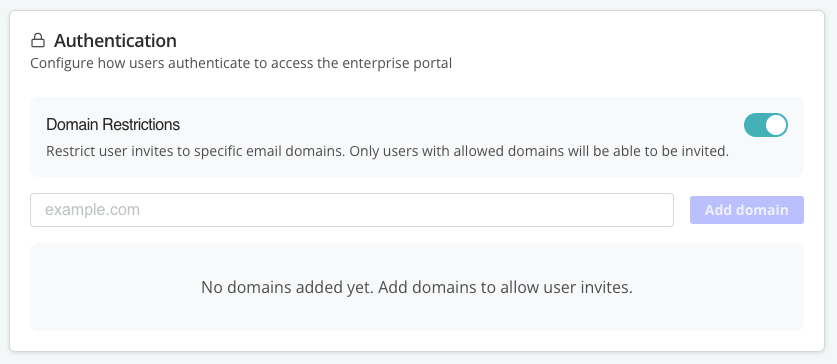
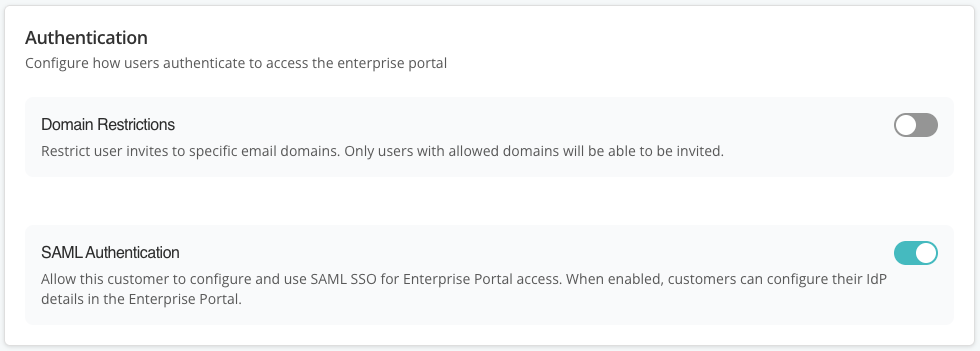
On the customer's page, go to Enterprise Portal access. In the Authentication section, enable the Domain Restrictions toggle.
-
In the text box, enter a domain to add to the allowlist. Click Add domain. Add more domains as needed.
View Email History and Delivery Status
To view Enterprise Portal email history and delivery status, do one of the following:
-
To view email history for a specific customer: In the Vendor Portal, go to Customer > Enterprise Portal Access > Email History.
-
To view email history for all customers: In the Vendor Portal, go to Enterprise Portal > Customer Access > Email History.
Invite Users
This section describes how to invite users to the Enterprise Portal from the Vendor Portal. Your customers can also invite users to the Enterprise Portal from the Enterprise Portal Team settings page. For more information about using the Team settings page, see Manage Team Settings in Log In To and Use the Enterprise Portal.
To invite users to the Enterprise Portal:
-
Enable access to the Enterprise Portal for the customer. See Manage Access to the Enterprise Portal above.
-
(Optional) Customize the Enterprise Portal invitation email. For more information, see Configure Invitation and Notification Emails in Customize the Enterprise Portal.
-
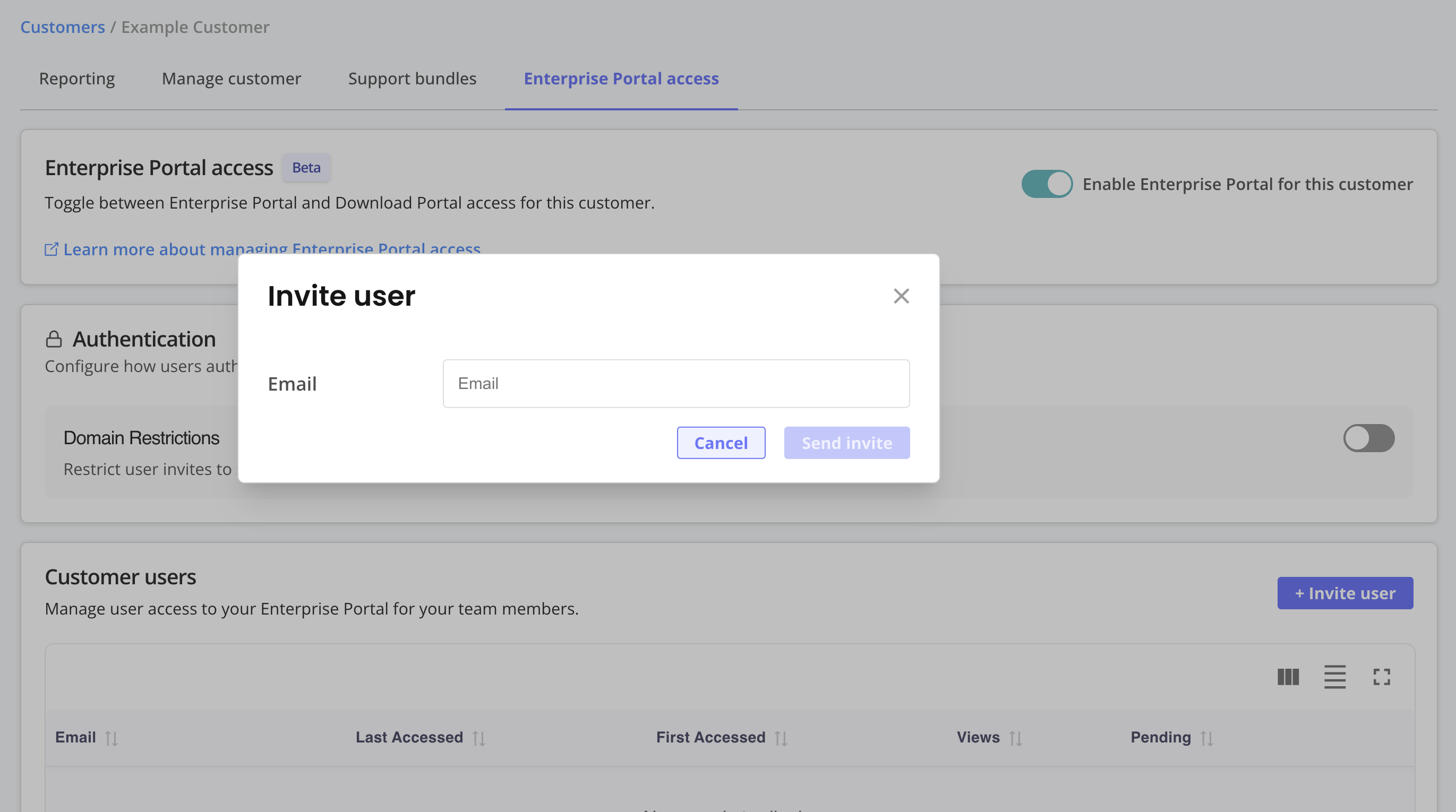
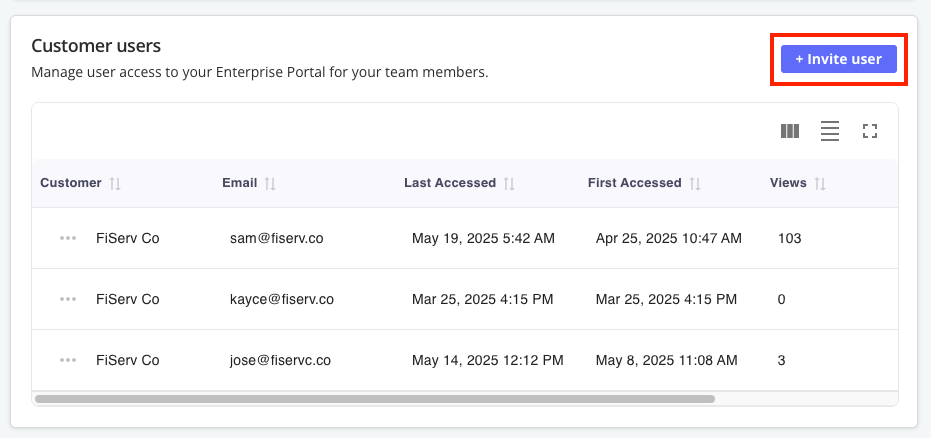
In the Vendor Portal, go to either Customers > [Customer Name] > Enterprise Portal access or Enterprise Portal > Access. Then, click Invite user.
-
In the Invite user dialog, for Email, enter the user's email address.
If the dialog includes a Customer dropdown, select the name of the customer where the user is associated.
-
Click Send invite.
Delete Users
To delete users from the Enterprise Portal:
-
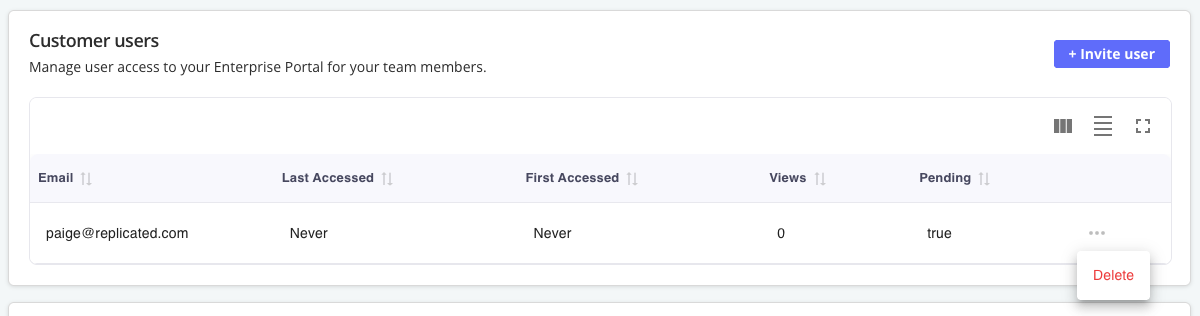
In the Vendor Portal, go to Customers > [Customer Name] > Enterprise Portal access.
-
In the Customer users table, find the target customer and open the dot menu. Click Delete.
Enable SAML Authentication (Alpha)
SAML Authentication to the Enterprise Portal is Alpha and subject to change. To access this feature, a feature flag must be enabled for your team. For more information, reach out to your Replicated account representative.
You can enable and disable SAML authentication for the Enterprise Portal on a per customer basis. When SAML authentication is enabled, the customer can set up SAML SSO logins for the Enterprise Portal using their identity provider (IdP). When SAML authentication is disabled, Enterprise Portal users are not able to log in using SAML, even if the customer had already configured SAML for their Enterprise Portal previously. For more information, see About SAML Logins (Alpha) in Log In and Use the Enterprise Portal.
To enable SAML authentication:
-
In the Vendor Portal, go to Customers and select the target customer.
-
On the customer's page, go to Enterprise Portal access. In the Authentication section, enable the SAML Authentication toggle.
View a larger version of this image
After you enable SAML authentication, the customer can configure SAML in the Enterprise Portal using their IdP. For more information, see Configure SAML Authentication (Alpha) in Log In and Use the Enterprise Portal.